Migrating Data From a Legacy DMS Without Losing History
By MDMS Team · 27 August 2026

Migrating Data From a Legacy DMS Without Losing History
Data migration from a legacy DMS succeeds when you profile and clean the data first, build a field-level mapping for every record type, run rehearsal imports before cutover, and keep the source system accessible until reconciliation is signed off. Skip any one of those steps and you inherit a new system full of old problems: duplicate customers, orphaned parts records, and service history that quietly vanished somewhere between the export and the import.
Before you sign anything or schedule a cutover date, work through this immediate checklist:
- Run a data profile on your current DMS to find duplicates, blanks, and inconsistent formats.
- Pull a verified, timestamped export of the source system and store it separately.
- Appoint one point of contact who owns the migration end to end.
- Write down your acceptance criteria before the vendor touches a single record.
Pro Tip: Never decommission the old system on go-live day, and never let a vendor tell you the data is “clean enough” without showing you a discrepancy report.
Key Takeaways
A successful legacy DMS migration depends on profiling and cleaning data first, mapping every field deliberately, rehearsing the import, and keeping the source system available until reconciliation is signed off.
| Point | Details |
|---|---|
| Profile before you migrate | Audit record counts, blanks, and duplicates in the legacy system before building a mapping document. |
| Map every field explicitly | Assign source-to-target rules and owners for ambiguous fields before any data moves. |
| Rehearse at increasing scale | Run small, large, and full mock imports to catch mapping errors before cutover night. |
| Reconcile with a discrepancy report | Match row counts and dollar totals, then require departmental sign-off before decommissioning. |
| Consider a modular platform like MDMS | Rolling out by department instead of all at once reduces cutover risk and lets your team retain data ownership. |
Table of Contents
- What Is Data Migration From a Legacy DMS?
- Locking Down Scope, Roles, and Acceptance Criteria
- Building the Field Mapping and Cleaning the Data
- Running Rehearsal Migrations Before Cutover Night
- How Do You Verify a Migration Actually Worked?
- Handling Open Jobs and Knowing When to Roll Back
- What Equipment Dealers Get Wrong About Migration
- How MDMS Handles Migration Without the Guesswork
- Sources
- FAQ
What Is Data Migration From a Legacy DMS?
Data migration from a legacy dealer management system is the process of extracting customer records, inventory and unit histories, parts data, service history, rental contracts, and finance entries from an outdated platform and loading them into a new one, with every field verified against the source before the old system is retired. Dealerships often call this a “conversion,” but conversion implies the vendor just flips a switch. It’s closer to an audit followed by a controlled transplant.
The stakes are higher than most owners expect walking in. A unit with three years of warranty claims tied to a serial number that gets mis-mapped doesn’t just lose data. It loses the evidence you need if that claim gets disputed. A customer record duplicated four times across trade-ins and rentals turns your new CRM into a source of confusion instead of clarity. Legacy document management system migration playbooks from other industries generalize this problem, but equipment dealerships carry specific risk categories: serialized units, floor plan financing, rental contract terms, and parts interchange history that generic guides never touch.
Locking Down Scope, Roles, and Acceptance Criteria
Before any technical work begins, define exactly what “done” looks like and who is accountable for saying so.
- Define scope by department. List every record type in play: customers, units and inventory, parts master, service history and open repair orders, rental contracts, and finance/GL entries. Vague scope is how “we’ll migrate everything” turns into missing fields nobody flagged.
- Assign a single point of contact for the whole project, backed by a departmental owner for sales, parts, service, rental, and finance. Each owner signs off on their own domain, not someone else’s guess at it.
- Schedule cutover away from month-end close, inventory counts, or your busiest rental season. A DMS migration during a physical inventory count is asking for a mismatch nobody can trace.
- Agree on measurable acceptance criteria in advance. “Inventory dollar value matches within a set tolerance” and “every unit record includes serial number, cost, and location” are testable. “Data looks right” is not.
Once scope and roles are set, put the contractual details in writing:
- Exact export format and who owns the extracted files.
- Access rights to the legacy system after go-live, and for how long.
- Any extraction or data-pull fees the outgoing vendor charges.
- The new vendor’s responsibility for remediation if discrepancies surface after go-live.
Dealers frequently assume the outgoing DMS vendor will hand over a clean, complete export. In practice, vendors differ widely on what they’ll convert, and confirming exactly which fields and historical records the vendor will deliver has to happen before you sign, not after you notice something’s missing during reconciliation.
Building the Field Mapping and Cleaning the Data
Profiling comes before mapping, and mapping comes before a single record moves. Skipping this order is the single most common reason migrations run over budget and over deadline, since poor data quality is consistently the primary driver of delays and unexpected ongoing costs.
Start with a profile of the legacy system: record counts per table, blank-field percentages, duplicate counts, and a check on unique keys like VIN or serial number. This tells you where the mess actually lives before you guess.
From there, build a field-level mapping document. For every source field, specify the target field, the transformation rule applied, and who owns the decision when the mapping isn’t obvious (a “customer type” field with six legacy values that need to collapse into three, for instance).
Cleaning work typically includes:
- Deduplicating customer records across sales, service, and rental history.
- Standardizing phone numbers, date formats, and currency fields.
- Reconciling part codes and supplier codes against your current parts master.
- Deciding how much service history to migrate in full detail versus summary or archive.
Scanned documents, free-text technician notes, and one-off custom fields need explicit rules too. Either they get a defined transformation path or they get archived with a documented reason. Don’t leave them for someone to “figure out later.”
Pro Tip: Resist the urge to migrate every legacy workaround your team built to compensate for the old system’s limits. Re-justify each process against what the new DMS can actually do natively; recreating undocumented workarounds is one of the costliest and most avoidable migration mistakes.
Running Rehearsal Migrations Before Cutover Night
Nobody should see their live data for the first time on cutover night. Rehearsals exist to catch mapping errors while the stakes are still low.
- Run a small subset first. Pick fifty to a hundred records across each department and check every field manually.
- Scale to a large subset. Bring in a full month of service history or a full parts category and check for pattern-level errors the small test missed.
- Run a full mock conversion. Move everything into a test environment and treat it like go-live day, including reporting.
- Validate against import logs, transformation counts, spot-checked records, and side-by-side report comparisons between old and new.
Choose migration tooling that gives you repeatable runs and complete import logs. The tool should execute the business rules your mapping document defines, not decide them for you. A nine-step checklist covering profiling, defined acceptance criteria, field mapping, deliberate transformation, awkward-case handling, trial runs, reconciliation, discrepancy reporting, and retained source access reliably catches the surprises that sink less disciplined conversions.
Document your cutover steps, your freeze window (the period nobody enters new data in either system), and a written rollback checklist before you schedule the actual date.
How Do You Verify a Migration Actually Worked?
Reconciliation is the difference between “it looks fine” and proof the migration worked. Every major data domain needs its totals and row counts checked against the source, not just eyeballed.
- Match customer, inventory, parts, service history, and finance record counts row for row against the legacy export.
- Spot-check high-value records field by field: your top units, your largest open ROs, your active rental contracts.
- Run end-to-end reports (an aged receivables summary, an inventory valuation) in both systems and compare the totals.
- Produce a discrepancy report with severity ratings and a named remediation owner for each issue found.
Parts inventory and demand history are especially prone to silent errors during dealership conversions. Field reports consistently show missing demand history and pricing mismatches unless inventory and demand data get specifically reconciled rather than assumed to have transferred cleanly.
| Reconciliation Check | What It Confirms |
|---|---|
| Row counts by domain | Every customer, unit, part, and finance record made the trip |
| Dollar-value matching | Inventory and receivables totals tie out between old and new systems |
| Spot-check sampling | High-value or high-risk records are field-accurate, not just present |
| Discrepancy report with sign-off | Departmental owners have formally accepted the migrated data |
Keep the verified export and read-only access to the legacy system for a period after go-live, allowing time to trace any missed reconciliation issues back to the source.
Handling Open Jobs and Knowing When to Roll Back
Open repair orders and active rentals are the trickiest part of any cutover, because they’re moving while you migrate them. You have two real options: finish out active jobs in the old system before cutover, or re-enter them fresh in the new one. Finishing them out in the legacy system is usually the safer path for anything close to completion.
- Keep the legacy DMS live in read-only mode until reconciliation is fully signed off, not just “mostly done.”
- For jobs close to completion, finish them in the old system rather than risk a mid-repair re-entry error.
- Set explicit rollback triggers in advance: an inventory dollar mismatch past your defined tolerance, missing critical service history on a flagged unit, or a failed integration on go-live day.
- Name who has authority to call a rollback before cutover night, not during it.
- Plan a post-go-live optimization window lasting several weeks after go-live to revisit any configuration decisions you made under time pressure.
What Equipment Dealers Get Wrong About Migration
The failure mode we see most often isn’t a bad DMS vendor. It’s a dealership that treats migration as an IT task instead of a business decision, and hands the mapping work to whoever has a free afternoon. The dealers who come through clean are the ones who assign a real owner to data cleanup weeks before any import runs.
The single best rule holds regardless of which system you’re leaving or joining: profile and clean the data first, map every field deliberately, then pick your tooling. Tooling is an enabler, not a judge. A migration platform will execute exactly what your mapping document tells it to, including every mistake baked into that document. Get the mapping right and the technology becomes the easy part.
— ModernDMS
How MDMS Handles Migration Without the Guesswork
Moderndms is built for dealerships doing exactly this kind of switch, not for enterprise IT departments migrating generic files. Setup runs under an hour, and you keep full ownership of your data with no lock-in if you ever decide to move again. Modules for sales, parts, service, rental, and finance roll out one at a time, so you’re not forced into a single-day, all-departments cutover, and Xero integration keeps your finance records syncing without a manual bridge.
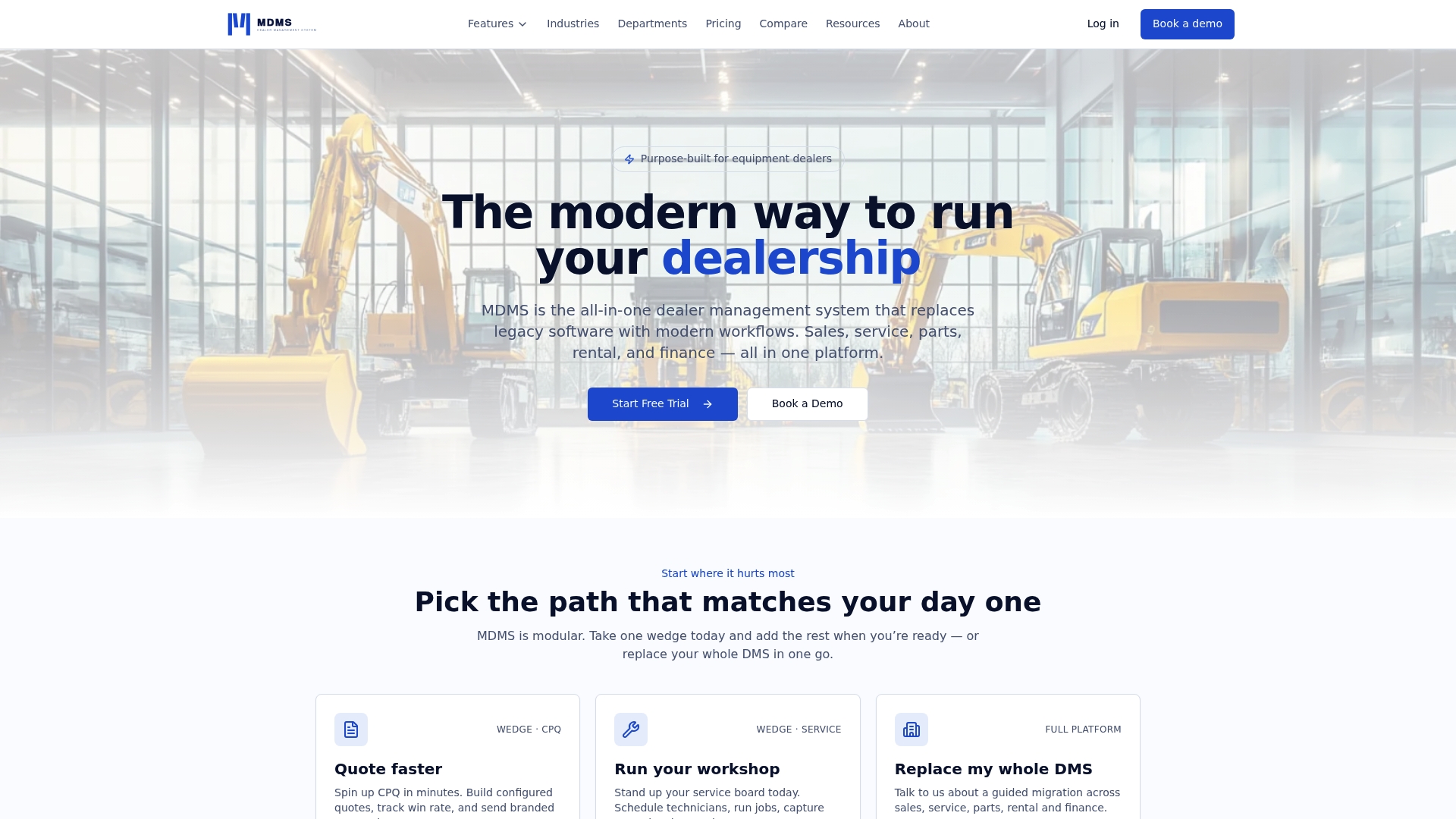
MDMS supports the technical side of migration: import tooling, mapping assistance, and validation checks that catch mismatches before they become discrepancy-report line items. What we can’t do for you is decide your acceptance criteria or clean your customer duplicates. That work stays with your team, because nobody knows your data better than the people who’ve been entering it for years. Dealerships using MDMS report saving up to 10 hours a week in administrative work once the migration settles in.
If you’re weighing a move off your current dealer management platform, request a migration checklist or book a demo through the MDMS migration page and see what a modular, department-by-department rollout looks like for your specific mix of sales, parts, service, and rental data.
Sources
- Data migration checklist
- Surviving a DMS migration: Lessons from the trenches
- Successful DMS data conversion (eBook)
FAQ
How Long Does a DMS Data Migration Take?
Timelines vary by dealership size and record volume, but rehearsals, mapping, and reconciliation typically stretch several weeks to a few months before a safe cutover date, plus a 30 to 90 day post-go-live optimization window.
What Records Are Riskiest to Migrate?
Serialized unit history, parts demand history, and open rental contracts carry the highest risk because they’re actively changing and easy to mis-map if fields aren’t defined in advance.
Should We Keep the Old DMS Running After Cutover?
Yes. Keep the legacy system in read-only mode and retain a verified export until reconciliation and departmental sign-off are fully complete, not just started.
Can MDMS Help With Field Mapping During Migration?
Yes. MDMS provides import tooling and validation support for mapping and checking data during a switch, though the dealership still owns data profiling and acceptance criteria.
What Should Trigger a Migration Rollback?
An inventory dollar mismatch past your set tolerance, missing critical service history on a flagged unit, or a failed system integration on go-live day should each trigger a predefined rollback response.