Machine Stocking Levels by Branch
Set minimum and maximum machines to hold per branch, make and model, and see where you are short or in excess.
Included with your module subscription at no extra charge. An administrator switches each pack on for your business in Admin > Features.
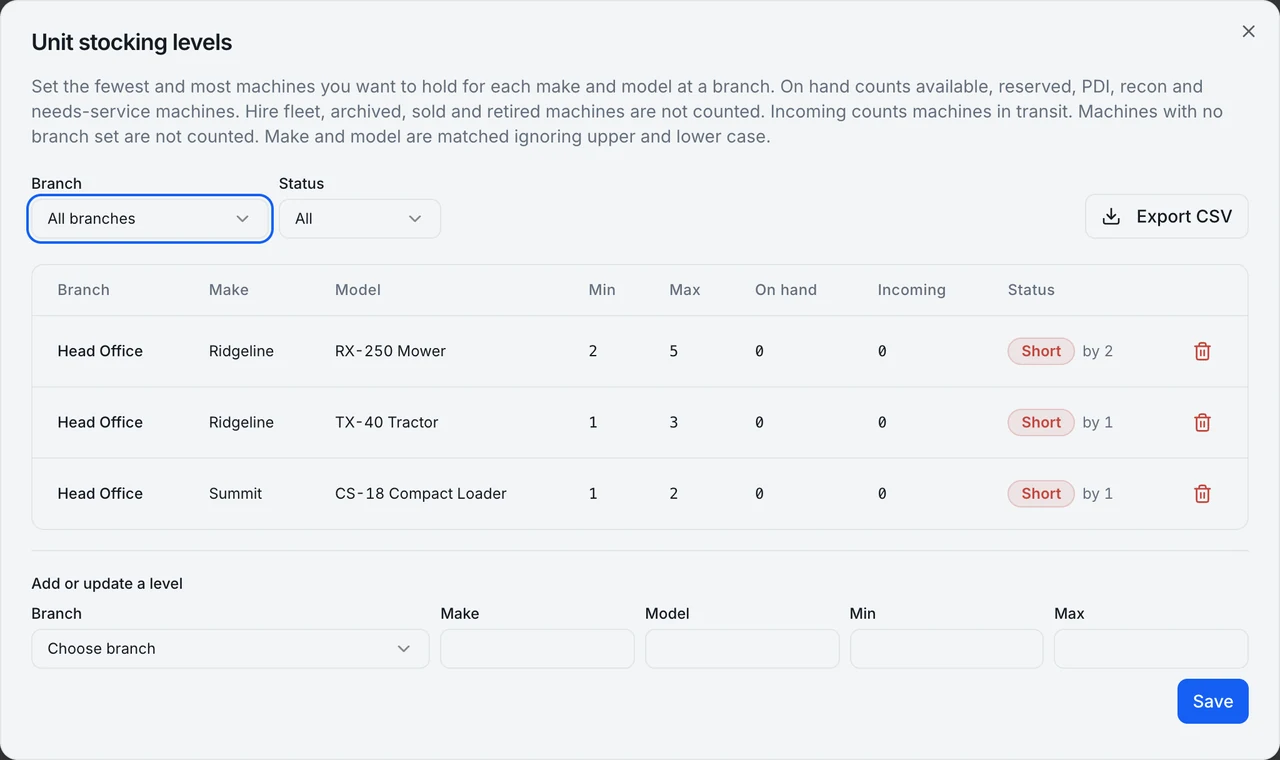
What unit stocking levels is
A dealership with several yards usually knows roughly what it wants to hold, and the number lives in a manager's head or a spreadsheet nobody trusts. Unit stocking levels writes the target down where the machines are recorded.
On the Equipment page, a Stocking levels view lets you set a minimum and a maximum number of machines for each branch, make and model. Beside each target, MDMS shows what is actually on hand and what is in transit, and labels the line short or excess. The whole view exports to CSV, so a regional manager can take it to a Monday meeting or into a purchasing conversation with the manufacturer.
The count is deliberately strict about what counts as stock for sale. Archived units, hire-fleet units, samples, sold and retired units, and units currently on hire are left out, and a unit that has no branch is not counted at all. If a figure looks low, look first for machines with no branch assigned. The view reports; it does not order or transfer anything for you.
The same levels are useful beyond the sales floor. A finance manager reviewing what the business is holding and a sales manager planning transfers both want to know where the yard is heavy, and one agreed set of targets per branch, make and model keeps those conversations on the same numbers instead of three separate spreadsheets.
Part of these modules
What unit stocking levels covers
- Adds a Stocking levels view to the Equipment page
- Records a minimum and maximum number of machines per branch, make and model
- Compares each level with units on hand and in transit and shows short or excess
- Exports the comparison to CSV
Where unit stocking levels stops
Stated as it behaves today, so you can judge the fit before you switch it on.
- Excludes archived, hire-fleet, sample, sold, retired and on-hire units from the counts
- Does not count units with no branch
- Is a read-only report: it does not raise orders or transfers
Unit stocking levels in a working day
The sales manager wants at least two mid-range tractors at the coastal yard and no more than five at the inland one. She enters the targets once for each branch and model. The next Monday the view shows the coastal yard short by one, with a unit in transit, and the inland yard in excess by two. She walks into the weekly meeting with the CSV and a proposal to transfer.
Switching on unit stocking levels
Included with your module subscription at no extra charge. An administrator switches each pack on for your business in Admin > Features.
Ask MDMS AI about unit stocking levels
Try asking Read
“Which branches are short on machines?”
Sales, parts, service, finance and management roles. Reads only. MDMS AI is an optional add-on with its own price and an AI seat, and what it can answer depends on your modules and role.
About MDMS AIMore feature packs
Price books and itemised quoting
Import supplier price books and quote machines, options and trade-ins on one itemised screen, with a margin floor and manager approval.
Work order job segments
Organise a work order by fault, each with its own Bill to, technician, parts, labour, checklist and photos.
Back-order allocation
Holds stock that arrives for the oldest waiting work orders and sales orders at the same branch, with every hold on a ledger.
Frequently asked questions
- Why is a machine missing from the count?
- It may be archived, hire-fleet, a sample, sold, retired or on hire, or it may have no branch. None of those are counted.
- Does it order machines for me?
- No. It is a read-only comparison that exports to CSV.
- Can I set targets per make and model?
- Yes. Levels are set per branch, make and model.
Where this work shows up
Ready to try unit stocking levels?
Start a 14-day free trial — no credit card, no implementation fee, no sales call required. Or book a personalised demo with our team to see your workflow in MDMS.